

Build a CRM System in Excel: 2026 Step-by-Step Guide
TL;DR:
- Building a CRM in Excel offers small businesses a cost-effective, fully controllable customer management tool without relying on cloud services. Proper structure, clear ownership, specific next actions, and automated date reminders are essential for an effective system, with automation tools like conditional formatting and Power Query enhancing usability. Regular weekly reviews and incremental development ensure the CRM remains accurate and useful, but larger teams may need dedicated CRM platforms for advanced features.
Building a CRM system in Excel gives small business owners a fully functional customer management tool without monthly fees, cloud dependency, or a steep learning curve. Excel is not just a spreadsheet. With structured tables, conditional formatting, and Power Query, it becomes a practical customer relationship management (CRM) platform you control completely. This guide walks you through every step: from setting up your data structure to automating follow-up reminders. Whether you manage 50 leads or 500, the approach works.
How to build a CRM system in excel that actually works
Most Excel CRMs fail not because Excel is the wrong tool, but because the setup lacks structure. Excel CRM failure is almost always caused by missing owner, stage, and next action fields rather than missing tabs or complexity. That insight changes everything about how you should start.
The goal is not to build the most elaborate spreadsheet. The goal is to build one that tells you exactly who to call, what to say, and when to do it. A well-structured Excel CRM does that reliably.
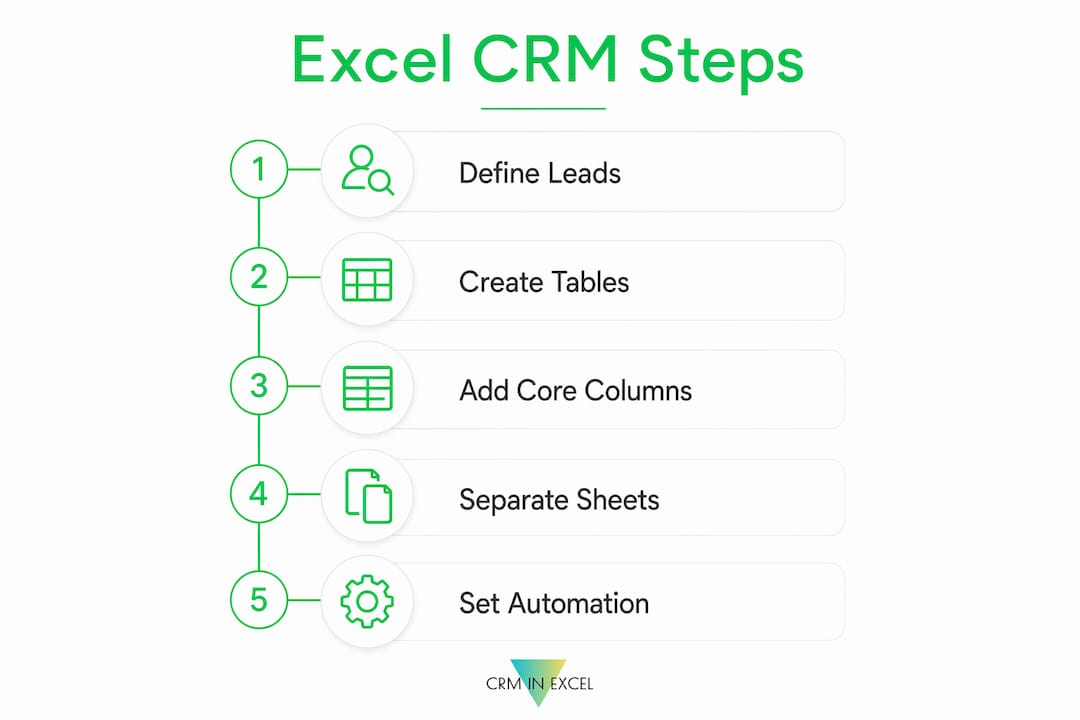
Pro Tip: Before adding any formulas or formatting, decide what a “lead” means in your business. Is it a website inquiry, a referral, a cold outreach? Defining this upfront keeps your data consistent from day one.
What CRM fields and data structure should you set up?
The foundation of any Excel customer management system is a clean, structured table. Structured Excel tables make filtering easier, keep formulas consistent, and expand automatically as you add rows. Static ranges break. Tables do not.
The core columns every CRM sheet needs
Track one row per lead and include these columns to keep follow-ups actionable:
| Column | Purpose |
|---|---|
| Contact Name | Identifies the individual |
| Company | Ties the contact to an organization |
| Source | Shows where the lead came from (referral, web, cold outreach) |
| Owner | Assigns accountability for follow-up |
| Stage | Shows position in the sales pipeline (New, Contacted, Proposal, Closed) |
| Last Touch | Records the date of the most recent interaction |
| Next Due Date | Triggers your follow-up reminder logic |
| Priority | Flags high-value or time-sensitive leads |
| Next Action | Describes the exact task to complete next |
Keep stage labels short and specific. “Proposal Sent” is better than “In Progress.” Vague stages create vague pipelines.
Contacts vs. deals: use separate sheets
Mixing contact details with deal tracking in one table creates clutter fast. Use one sheet for your contact database and a second sheet for active deals or opportunities. This mirrors how professional CRM tools like Salesforce and HubSpot separate records. You get the same clarity without the subscription cost.
Pro Tip: Convert your data range into an official Excel Table (Insert > Table) immediately. This unlocks automatic formula expansion, structured references, and faster filtering.
How do excel’s automation features improve your CRM?
Automation is what separates a living CRM from a dead contact list. Excel’s conditional formatting and Power Query handle two critical jobs: visual reminders and data consolidation.

Setting up conditional formatting for follow-up alerts
Conditional formatting with TODAY() creates dynamic reminder highlights that update every time you open the file. The formula that works best for a rolling seven-day window is:
=AND($F2>=TODAY(),$F2<=TODAY()+7)
This highlights any row where the Next Due Date falls within the next seven days. It does not highlight overdue items, which is the critical detail most people miss. Incorrect date logic causes teams to ignore the tracker entirely because overdue and upcoming tasks look identical. Use a separate rule with a red fill for dates less than TODAY() to flag overdue items clearly.
Here is a quick comparison of the two rules you need:
| Rule | Formula | Fill Color | Purpose |
|---|---|---|---|
| Upcoming tasks | =AND($F2>=TODAY(),$F2<=TODAY()+7) |
Yellow | Prompts action this week |
| Overdue tasks | =$F2<TODAY() |
Red | Flags missed follow-ups |
Using power query to keep data fresh
Power Query consolidates data from CSVs, databases, and online services into one workbook, then refreshes everything with a single click. This matters when your leads come from multiple sources: a web form export, a partner spreadsheet, and a manual entry sheet. Without Power Query, you copy and paste. Copy and paste introduces errors. Power Query refresh transforms a static spreadsheet into a maintainable system that stays accurate.
To set it up, go to Data > Get Data, choose your source, and load it into a query. Set the refresh schedule under Query Properties. Your pipeline updates automatically.
What step-by-step process builds a reliable excel CRM?
Follow this sequence to create a CRM in Excel from scratch. Each step builds on the last.
-
Create your workbook structure. Add three sheets: Contacts, Deals, and Lookup. The Lookup sheet holds your dropdown values (stages, sources, owners, priorities).
-
Build your Contacts table. Enter your column headers, select the range, and press Ctrl+T to convert it to an Excel Table. Name it tblContacts.
-
Add data validation dropdowns. Select the Stage column, go to Data > Data Validation, and choose List. Data validation with dropdown lists backed by named ranges prevents manual entry errors and makes editing option lists fast. Point the source to your Lookup sheet range.
-
Build your Deals table. Repeat the table setup for your Deals sheet. Include Owner, Next Action, and Next Due Date columns. These three fields are the operational core of your CRM.
-
Apply conditional formatting. Select your Next Due Date column in the Deals table. Add the two rules from the previous section: yellow for upcoming, red for overdue.
-
Set up Power Query (optional but recommended). If your leads come from external files, connect them via Power Query. This step pays off immediately if you manage more than 100 leads.
-
Run your first weekly review. Weekly CRM reviews keep data current. Update next actions after every conversation, reassign leads without owners, and move inactive leads to a “Stale” stage. This cadence prevents CRM degradation and lost sales.
Pro Tip: Block 20 minutes every Monday morning for your CRM review. Treat it like a standing meeting. Teams that skip this step watch their pipeline accuracy drop within two weeks.
What mistakes kill an excel CRM before it starts?
A few common errors turn a well-built Excel CRM into an abandoned spreadsheet. Knowing them in advance saves you weeks of frustration.
Vague next actions destroy follow-up consistency. Next action fields should say “send pricing deck Tuesday” not “follow up.” Vague notes do not trigger action. Specific tasks do.
No owner means no accountability. Every lead needs a name in the Owner column. When a lead has no owner, it has no champion. It dies quietly.
Mixing contacts and deals in one table creates rows that are impossible to filter cleanly. You end up scrolling through 300 rows to find your active pipeline. Separate tables solve this in five minutes.
Broken conditional formatting logic is more damaging than no formatting at all. If your yellow highlight also catches overdue items, you stop trusting the color. You stop looking at it. The fix is the AND() formula with both a lower and upper date bound.
“A CRM that shows you everything is as useless as one that shows you nothing. Filter ruthlessly.”
Pro Tip: Archive stale leads to a separate sheet quarterly. Keep your active pipeline under 150 rows. Shorter lists get reviewed. Long lists get ignored.
Finally, know when Excel has reached its limit. If you manage more than three sales reps, need real-time collaboration, or require mobile access, a dedicated CRM tool becomes the right call. You can review the Excel vs. online CRM comparison to make that decision clearly.
Key takeaways
A well-structured Excel CRM with clear ownership, specific next actions, and automated date reminders outperforms any complex spreadsheet built without those three elements.
| Point | Details |
|---|---|
| Structure before features | Build your table with Owner, Stage, Next Action, and Next Due Date before adding any formulas. |
| Use Excel Tables, not ranges | Convert data to official Excel Tables for automatic expansion and consistent formulas. |
| Two conditional formatting rules | Use yellow for upcoming tasks and red for overdue items with AND() date logic. |
| Power Query prevents errors | Import external lead sources via Power Query to eliminate copy-paste mistakes. |
| Weekly review is non-negotiable | Update next actions, reassign orphaned leads, and archive stale contacts every week. |
What i’ve learned building excel crms for real businesses
By Michał B. Fedor
The most common mistake I see is people spending hours on formatting and color schemes before they have a single working formula. They build a beautiful spreadsheet that does nothing. I did the same thing the first time.
What actually changed my results was adding two columns: Next Action and Next Due Date. Before those columns existed, my spreadsheet was a contact list. After them, it was a CRM. That distinction sounds small. The productivity difference is not small.
I have also learned to resist the urge to build everything at once. Start with 10 contacts. Test your conditional formatting. Run one weekly review. Fix what breaks. Then scale. The people who try to build a perfect system on day one usually abandon it by week three.
Excel CRMs work best for solo operators and small teams under five people. Once you need shared editing, audit trails, or mobile access, you are looking at the wrong tool. That is not a failure. That is growth. Knowing the boundary keeps you from wasting months forcing Excel to do something it was not designed for. If you want to explore what replicating full CRM features in a spreadsheet looks like before making that call, the CRM features in a spreadsheet guide is worth reading first.
Build incrementally. Review weekly. Keep next actions specific. That is the entire system.
— Michał B. Fedor
Skip the build and get a ready-made excel CRM
Building from scratch takes time. If you want all the structure described in this article already built, formatted, and tested, Crminexcel delivers exactly that.
Crminexcel is a fully functional CRM built inside Microsoft Excel. It includes a lead tracker, customer database, follow-up reminders, sales pipeline, and reporting dashboards. There are no monthly fees and no cloud dependency. You pay once and own it permanently. Your data stays on your machine. Setup takes minutes, not days. For freelancers, insurance agents, consultants, and small business owners who already know Excel, it is the fastest path from scattered contacts to a working CRM.
FAQ
What columns does an excel CRM need to function?
The minimum columns are Contact Name, Owner, Stage, Next Action, and Next Due Date. These five fields turn a contact list into an operational CRM.
How do i create follow-up reminders in excel?
Use conditional formatting with the formula =AND($F2>=TODAY(),$F2<=TODAY()+7) to highlight rows due within seven days. Add a separate red rule for =$F2<TODAY() to flag overdue items.
Can excel handle a sales pipeline?
Yes. Use a Stage column with dropdown values like New, Contacted, Proposal Sent, and Closed Won. Filter or sort by stage to see your pipeline at any point in time.
When should i switch from excel to a dedicated CRM?
Switch when you need real-time collaboration across more than three users, mobile access, or automated email sequences. For solo operators and small teams, Excel handles the job well.
How do i keep my excel CRM from becoming outdated?
Run a weekly review every Monday. Update next actions after every conversation, reassign leads without owners, and move inactive contacts to a Stale stage. Regular weekly reviews prevent data decay and keep your pipeline accurate.