

How to Migrate CRM Data to Excel Without the Hassle
TL;DR:
- Migrating CRM data to Excel involves exporting customer records, leads, and sales activities for direct management.
- Choosing the appropriate method—static, dynamic, or API export—depends on dataset size and update frequency.
- Proper preparation, including data standardization and deduplication, is crucial for reliable and usable spreadsheets.
Migrating CRM data to Excel means extracting your customer records, leads, and sales activity from a CRM platform and importing them into Microsoft Excel for direct management. Platforms like Microsoft Dynamics 365, Monday CRM, and HubSpot all support this process through built-in export features or API connections. The method you choose depends on your dataset size, how often you need updated data, and whether you want a one-time snapshot or a live connection. For small businesses and consultants who want full control without paying monthly software fees, Excel is often the most practical destination. Crminexcel is built specifically for this use case.
How to migrate CRM data to Excel: the three core methods
Three distinct methods exist for exporting CRM data to Excel: static worksheet exports, dynamic worksheet exports, and API-based exports. Each serves a different need, and choosing the wrong one wastes time or leaves your data stale.

Static worksheet exports produce a one-time snapshot of your CRM data at the moment of export. You download a .csv or .xlsx file, open it in Excel, and work with it as a fixed dataset. This is the fastest path for one-off reporting, audits, or migrating to a new system. The limitation is obvious: the file does not update when your CRM changes.
Dynamic worksheet exports, available in Microsoft Dynamics 365, create a live Excel file connected to your CRM query. When you refresh the file, it pulls the latest records. Adding a Modified On timestamp to your dynamic export reduces internal disagreements about data freshness by 50%. That single field tells every team member exactly when the data was last current.
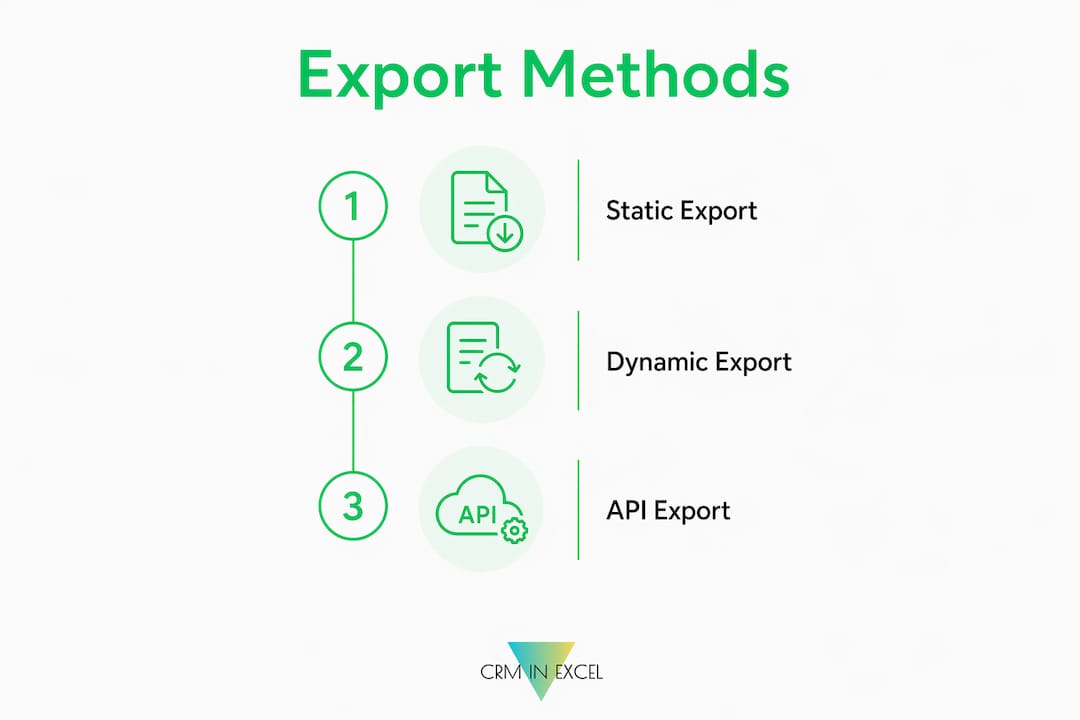
API-based exports are the right choice for large datasets or recurring automated transfers. Most CRM platforms cap UI exports at 20,000 rows, which means any contact database above that threshold requires paginated API calls or a vendor database dump. This is not a rare edge case. Many growing businesses hit this ceiling faster than they expect.
| Method | Best for | Key limitation |
|---|---|---|
| Static export | One-time migration, audits | No automatic updates |
| Dynamic worksheet | Recurring reports, live dashboards | Requires Dynamics 365 or similar |
| API export | Large datasets, automation | Needs technical setup or developer help |
What preparation is needed before transferring CRM data
Preparation is the step most businesses skip, and it is the reason most migrations produce messy, unreliable spreadsheets. A full migration prep typically takes 2 to 4 hours for cleaning and reformatting a contact database. That time is not optional. It is the difference between a spreadsheet you can actually use and one you spend weeks fixing.
Follow these steps before you export a single record:
- Standardize your formats. Phone numbers, dates, and addresses need consistent formatting across every row. Mixed formats like “01/05/2025” and “January 5, 2025” in the same column will break any sorting or filtering you try to apply in Excel.
- Deduplicate your records. Run a deduplication check inside your CRM before exporting. Importing duplicates into Excel multiplies the problem and makes your pipeline data unreliable.
- Map your fields. List every CRM field you plan to export and decide which Excel column it maps to. CRM field names rarely match Excel column headers by default. A simple mapping table in a separate sheet prevents confusion during import.
- Check your row count. If your export will exceed 20,000 records, plan for API access or split your export into filtered segments by date range or record type.
- Validate contact data. Email addresses with typos or inactive domains inflate your contact count and corrupt reporting. Tools like OrbiSearch handle email validation at scale before you commit to a final export.
Pro Tip: Create a dedicated staging sheet in Excel before importing your CRM data. Paste raw exported data there first, clean it, then copy finalized records to your working sheet. This protects your master data from accidental overwrites.
How to conduct the migration step by step
Static export and import
Open your CRM, navigate to the contacts or leads view, apply any filters you need, and select the export option. Most platforms export to .csv by default. Open the file in Excel, check that column headers match your field map, and remove any system-generated columns you do not need. Save the file as .xlsx to preserve formatting. This entire process for a simple board export takes under two minutes once your data is clean.
Dynamic worksheet setup in Dynamics 365
- Open the view you want to export in Microsoft Dynamics 365.
- Select “Export to Excel” and choose “Dynamic Worksheet.”
- Save the generated .xlsx file to your local drive or SharePoint.
- Open the file in Excel and click “Enable Editing” when prompted.
- Use the “Refresh” button in the CRM add-in tab to pull updated records at any time.
The dynamic worksheet stays connected to your Dynamics 365 environment. Any filter or sort you applied to the view carries over into the Excel file, so you are not managing a raw data dump.
Automating exports with Power Automate and Power Query
For recurring exports, Power Automate runs scheduled flows server-side, pushing CRM data into Excel files on SharePoint or OneDrive without requiring manual intervention. This is the right setup for weekly pipeline reports or monthly customer lists that multiple team members need. Power Query complements this by letting you transform and clean incoming data automatically each time the file refreshes.
Pro Tip: After every export, run a row count comparison between your CRM view and your Excel file. If the numbers do not match, you have a silent export failure. Catching it immediately saves hours of downstream confusion.
What are common mistakes when migrating CRM data to Excel?
The most damaging mistakes in CRM data migration are not technical errors. They are judgment errors made before the first export runs.
- Copying workflows instead of rebuilding them. RevOps expert Abhishek Singla advises that roughly half of CRM workflows should be rebuilt rather than copied during migration. Workflows designed for a CRM’s automation engine do not translate to Excel logic. Rebuilding forces you to evaluate what actually works.
- Expecting Excel to preserve relational data. Excel handles flat data well. It does not preserve relational integrity between accounts and contacts the way a CRM does. Notes, call recordings, and activity logs require separate extraction paths entirely. Set accurate expectations before you start.
- Exporting email threads. Email history cannot be exported efficiently from most CRMs. The better approach is to disconnect your old CRM from your email and reconnect your inbox to your new system for backfilling. Attempting to export email threads produces incomplete, unstructured data that is nearly impossible to use.
- Ignoring export row limits. For datasets over 20,000 records, paginated API calls or vendor database dumps are required to avoid silent data loss. A UI export that appears to complete successfully may have silently dropped thousands of records.
- Skipping a security review. Every exported file containing customer data is a potential liability. Restrict file access, avoid emailing raw exports, and store files in password-protected locations or controlled SharePoint folders.
“CRM exports are rarely one-click full backups. Paging and API limits require technical setup for large datasets, and silent failures are common without row count verification.” — Creatio CRM export guide
Key takeaways
Migrating CRM data to Excel works best when you match your export method to your dataset size, clean your data before exporting, and set realistic expectations about what Excel can and cannot replicate from a full CRM system.
| Point | Details |
|---|---|
| Choose the right export method | Static exports suit one-time migrations; dynamic worksheets and APIs serve recurring or large-scale needs. |
| Clean before you export | Standardize formats, deduplicate, and map fields before touching the export button to avoid rework. |
| Respect row limits | Exports above 20,000 records require API access or split exports to prevent silent data loss. |
| Rebuild workflows, don’t copy | Roughly half of CRM workflows should be rebuilt in Excel rather than copied directly from your CRM. |
| Excel has real limits | Relational data, email threads, and call logs do not transfer cleanly to Excel and need separate handling. |
Why I think most businesses overcomplicate this process
I have watched small business owners spend weeks agonizing over CRM migration when the actual export took 20 minutes. The complexity is almost always self-inflicted. People assume they need to replicate every CRM feature inside Excel, and that assumption leads to bloated, unusable spreadsheets that nobody maintains.
The businesses that get the most value from Excel-based CRM management are the ones who accept Excel for what it is: a flat, flexible, fast tool for managing contacts, tracking follow-ups, and running pipeline reports. They do not try to rebuild Salesforce inside a spreadsheet. They build something lean that their team actually uses.
The cost argument is also underrated. A consultant paying $75 per month for a CRM they use at 20% capacity is not getting value. They are paying for features they do not need and complexity they do not want. Moving that data to Excel and managing it with a purpose-built tool like Crminexcel costs a fraction of that, with no recurring fees and no data held hostage in a vendor’s cloud.
Where Excel falls short is in scale. If you are managing thousands of active deals with complex automation, multi-user permissions, and deep integrations, Excel is the wrong tool. But for the majority of solo operators, small teams, and service businesses I have seen, Excel covers 90% of what they actually need. The remaining 10% is usually features they were paying for but never using.
— Michał B. Fedor
Manage your CRM data in Excel without monthly fees
Once your data is in Excel, the real question is how you manage it going forward. Crminexcel is an offline CRM built entirely inside Microsoft Excel, designed for exactly this situation. It gives you a fully structured CRM system with lead tracking, a customer database, follow-up reminders, sales pipeline management, and contact history. There are no monthly subscriptions, no cloud dependency, and no learning curve if you already know Excel. You pay once and own it outright. For business owners, insurance agents, consultants, and freelancers who want their customer data organized and accessible without expensive software, Crminexcel is the practical next step after migration.
FAQ
What is the easiest way to export CRM data to Excel?
The easiest method is a static export directly from your CRM’s list or contacts view, which downloads a .csv or .xlsx file in under two minutes for small datasets. For larger or recurring exports, dynamic worksheets or Power Automate flows are more reliable.
How do I handle CRM exports larger than 20,000 rows?
Most CRM platforms cap UI exports at 20,000 rows, so larger datasets require paginated API calls or a direct database dump requested from your CRM vendor. Splitting exports by date range or record type is a practical workaround without API access.
Can Excel fully replace a CRM after migration?
Excel handles flat data like contacts, leads, and pipeline stages well, but it does not preserve relational data structures, email threads, or call recordings from a CRM. Tools like Crminexcel add CRM-specific structure to Excel to close most of that gap for small businesses.
How long does it take to migrate CRM data to Excel?
A simple board or contact list export takes under two minutes once your data is ready. Full migration preparation, including cleaning, deduplication, and field mapping, typically takes 2 to 4 hours for a standard contact database.
Should I copy my CRM workflows into Excel during migration?
No. Roughly half of CRM workflows should be rebuilt rather than copied, since workflows designed for CRM automation logic do not translate directly to Excel. Rebuilding them forces a useful review of which processes actually add value.