

Replicate CRM Features in a Spreadsheet: 2026 Guide
A spreadsheet CRM is a fully functional customer relationship management system built inside Microsoft Excel or Google Sheets, using native features like tables, formulas, and data validation to replace dedicated CRM software. Small businesses can replicate CRM features in a spreadsheet without paying $15 to $150 per user per month in subscription fees, which means a solo consultant or five-person sales team can manage leads, track deals, and log follow-ups at zero recurring cost. The industry term for this approach is a “spreadsheet CRM” or “manual CRM,” and it covers contact management, pipeline tracking, activity logging, and basic reporting. Tools like Excel, Google Sheets, and Crminexcel each represent a different point on the spectrum from fully manual to pre-built.
What spreadsheet tools are essential for replicating CRM functions?

The foundation of any spreadsheet CRM is the Excel Table object, created with Ctrl+T. Tables auto-expand as you add rows, and their structured references keep formulas intact when you insert or delete data. Without tables, a formula like "=SUM(B2:B50)breaks the moment you add row 51. With a table,=SUM(Table1[Deal Value])` adjusts automatically.
Beyond tables, these features do the heaviest lifting:
- Data validation and dropdown lists. Standardized inputs for fields like “Lead Status” or “Deal Stage” prevent free-text chaos. Dropdown menus reduce data entry errors and keep your pipeline stages consistent across every team member.
- XLOOKUP and INDEX/MATCH. These formulas pull related data across tabs. If your Contacts tab holds customer details and your Opportunities tab holds deal values, XLOOKUP connects them by a shared ID without manual copy-pasting.
-
SUMIFS and COUNTIFS. These calculate pipeline totals by stage, rep, or date range. A formula like
=SUMIFS(DealValue,Stage,"Proposal")gives you the total value of every deal currently in the proposal stage. - Conditional formatting. Color-code rows where follow-up dates have passed, deal values exceed a threshold, or lead status is “Stalled.” Excel’s SUMIFS and conditional formatting replicate the visual alerts that dedicated CRM dashboards display by default.
- Power Query. When you import contacts from a CSV export or merge two lists, Power Query cleans and shapes the data without manual reformatting. This is the closest Excel gets to an ETL pipeline.
- Shared access. Google Sheets handles real-time collaboration natively. Excel users on Microsoft 365 can co-author files stored in OneDrive or SharePoint.
Pro Tip: Store all dropdown list definitions in a dedicated “Settings” tab with named ranges. This keeps your validation sources in one place and prevents broken references when you add new stages or statuses.
How do you design a spreadsheet CRM for contacts, pipeline, and activities?
The most effective spreadsheet CRM uses separate tabs for each core module, connected by a unique contact ID. Here is the structure that works for most small businesses:
- Contacts tab. Columns: Contact ID, First Name, Last Name, Company, Email, Phone, Source, Owner, Date Added, Notes. The Contact ID is the spine of the entire system. Every other tab references it.
- Leads tab. Columns: Lead ID, Contact ID, Lead Source, Status (dropdown: New / Contacted / Qualified / Disqualified), Assigned To, Created Date, Last Activity Date.
- Opportunities tab. Columns: Opportunity ID, Contact ID, Deal Name, Stage (dropdown: Prospecting / Proposal / Negotiation / Closed Won / Closed Lost), Deal Value, Expected Close Date, Probability %, Weighted Value.
- Activities tab. Columns: Activity ID, Contact ID, Activity Type (dropdown: Call / Email / Meeting / Demo), Date, Notes, Next Action, Next Action Date.
- Dashboard tab. Summary charts and pivot tables that pull from the four tabs above.
The table below shows how each tab maps to a standard CRM module:
| Spreadsheet tab | CRM equivalent | Key linking field |
|---|---|---|
| Contacts | Contact database | Contact ID |
| Leads | Lead management | Contact ID |
| Opportunities | Sales pipeline | Contact ID, Opportunity ID |
| Activities | Activity log / tasks | Contact ID, Activity ID |
| Dashboard | Reporting and analytics | All tables via pivot |
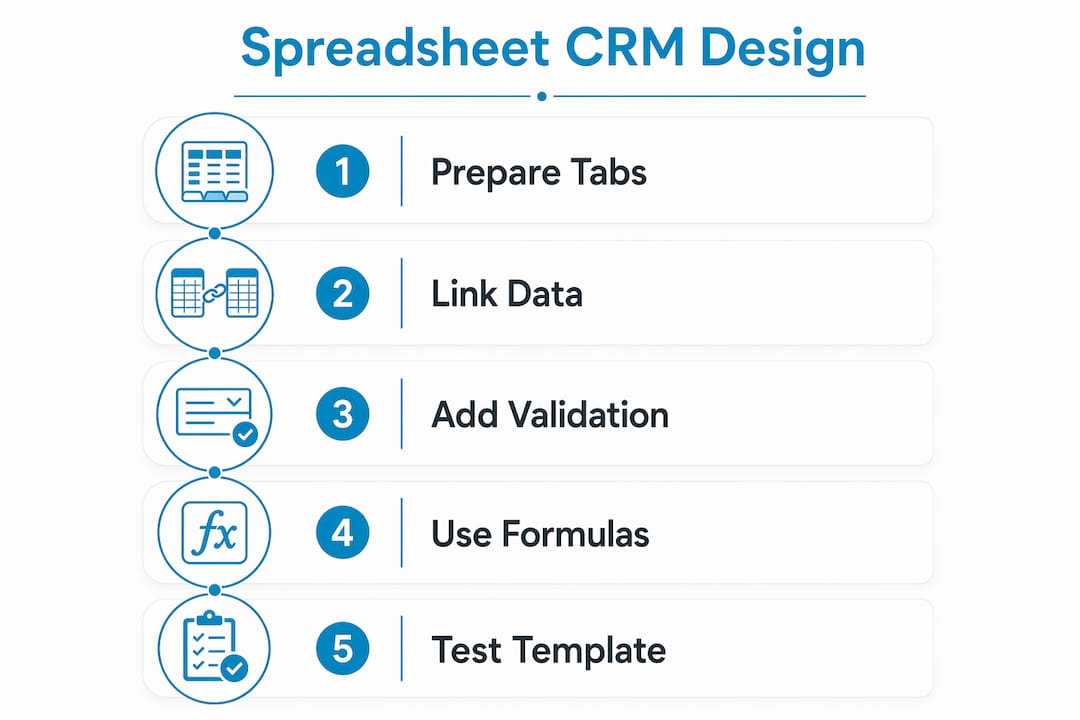
Use XLOOKUP on the Opportunities tab to pull the contact’s name and company from the Contacts tab by Contact ID. This eliminates redundant data entry and keeps records synchronized when a contact’s details change.
What step-by-step process builds a spreadsheet CRM from scratch?
Follow this sequence to go from a blank workbook to a working CRM in a single session:
- Define your data requirements. List every field your team needs to track before touching a cell. Scope creep after setup breaks formulas and wastes time.
- Create tables and name ranges. Select your header row and first data row, press Ctrl+T, and name each table (ContactsTable, LeadsTable, OppsTable, ActivitiesTable). Named tables make formulas readable.
- Build the Settings tab. List all dropdown values in columns: one column per field (Stage, Status, Activity Type, Lead Source). Define named ranges for each list. This is where you apply the principle that operational discipline is as critical as technical configuration.
- Apply data validation. Select the Stage column in OppsTable, go to Data > Data Validation, choose “List,” and point to your named range from the Settings tab. Repeat for every dropdown field.
- Enter sample data. Add five to ten real or fictional contacts and opportunities. Sample data lets you test formulas before you commit real records.
-
Build lookup formulas. On the Opportunities tab, use
=XLOOKUP([@ContactID],ContactsTable[Contact ID],ContactsTable[Company])to pull the company name automatically. - Add conditional formatting. On the Activities tab, highlight rows where Next Action Date is less than today’s date in red. On the Opportunities tab, flag deals where Expected Close Date has passed and Stage is not “Closed Won.”
- Build the Dashboard tab. Insert a pivot table sourced from OppsTable. Add a bar chart showing deal value by stage. Add a COUNTIFS formula counting open activities per rep.
- Test and debug. Delete a row, add a row, and change a Contact ID. Confirm that lookup formulas update correctly and no broken references appear.
Pro Tip: Save a clean “template” version of the workbook before entering live data. If a formula breaks in production, you have a working baseline to reference.
The data below shows a sample pipeline summary a dashboard tab might display:
| Stage | Deal count | Total value | Weighted value |
|---|---|---|---|
| Prospecting | 12 | $48,000 | $9,600 |
| Proposal | 7 | $63,000 | $31,500 |
| Negotiation | 4 | $38,000 | $28,500 |
| Closed Won | 9 | $72,000 | $72,000 |
What are common challenges when using spreadsheets as CRMs?
Spreadsheet CRMs fail in predictable ways. Knowing the failure modes in advance lets you design around them.
- Duplicate contacts. Without enforcement, two team members will create separate records for the same customer. The fix is unique identifier fields like email address combined with an upsert script that checks for existing records before inserting new ones.
- Concurrent edit conflicts. Two people editing the same cell simultaneously in Excel (non-cloud) will overwrite each other’s work. Move to OneDrive co-authoring or Google Sheets if your team edits the file at the same time.
- Performance degradation. Workbooks with more than 50,000 rows and complex array formulas slow to a crawl. Volatile functions like INDIRECT and OFFSET compound the problem. Replace them with structured table references.
- Broken formula references. Cutting and pasting cells instead of copying them severs table references. Train every user to copy-paste, never cut-paste, within CRM tabs.
- No audit trail. Spreadsheets do not log who changed what and when. Google Sheets version history partially addresses this, but it is not a substitute for a proper change log.
Spreadsheets become difficult to scale with multiple concurrent users and complex workflows requiring automation or audit trails, including role-based permissions and activity logging that dedicated CRM platforms provide natively. (source)
The clearest signal that you have outgrown a spreadsheet CRM is when your team spends more time maintaining the file than using it. At that point, scaling often requires moving to a dedicated CRM platform built for real-time collaboration and workflow automation.
Key takeaways
A spreadsheet CRM built in Excel or Google Sheets covers every core CRM function for small businesses at zero recurring cost, provided you design it with tables, named ranges, and strict data validation from the start.
| Point | Details |
|---|---|
| Use Excel Table objects | Press Ctrl+T to create auto-expanding tables that keep formulas intact as data grows. |
| Separate tabs by module | Build distinct tabs for Contacts, Leads, Opportunities, Activities, and Dashboard. |
| Standardize with dropdowns | Data validation dropdowns reduce entry errors and keep pipeline stages consistent. |
| Prevent duplicates early | Use unique email IDs and upsert logic to stop duplicate contacts before they multiply. |
| Know the exit signal | When maintaining the file takes more time than using it, migrate to dedicated CRM software. |
Why spreadsheet CRMs deserve more credit than they get
Most articles on this topic treat spreadsheet CRMs as a temporary embarrassment, something you use until you can afford “real” software. That framing is wrong, and it costs small business owners money.
I have seen five-person sales teams run tighter pipelines in a well-designed Excel workbook than companies paying for mid-tier CRM subscriptions they barely configure. The spreadsheet forces you to think about your data structure. You cannot hide behind a vendor’s default fields. Every column you create is a deliberate choice about what your business actually tracks.
The honest limitation is not features. It is discipline. A spreadsheet CRM built with clear operational rules including standardized fields, access controls, and regular backups outperforms a poorly adopted SaaS CRM every time. The failure mode is almost always human, not technical.
That said, I treat spreadsheet CRMs as evolving projects, not permanent solutions. When a business crosses roughly ten active users, or when automation requirements exceed what Apps Script or Power Automate can handle cleanly, the spreadsheet has done its job. It taught you what your CRM actually needs to do. That knowledge makes the migration to a dedicated platform far more successful than jumping in blind on day one.
The sweet spot for a spreadsheet CRM is a business with one to five users, a defined sales process, and a preference for owning their data without a monthly invoice attached.
— Michał
Ready to skip the setup and start managing customers today?
Building a spreadsheet CRM from scratch takes time, and formula errors are frustrating when you just need to track a lead. Crminexcel solves that problem directly.
Crminexcel is a fully built CRM system inside Microsoft Excel, covering lead tracking, customer database management, follow-up reminders, sales pipeline stages, contact history, and reporting. You pay once and own it permanently, with no subscription, no cloud dependency, and no data shared with third parties. It runs entirely offline on Windows, using software you already know. If you want the power of a spreadsheet CRM without the build time, Crminexcel is the direct path.
FAQ
Can you really replicate CRM features in a spreadsheet?
Yes. Excel and Google Sheets cover contact management, pipeline tracking, activity logging, and basic reporting using tables, XLOOKUP, SUMIFS, and conditional formatting. The gap between a spreadsheet CRM and entry-level paid CRM software is smaller than most people assume.
What is the biggest risk of using a spreadsheet as a CRM?
Duplicate records and broken formulas are the most common failure points. Using unique email identifiers and upsert logic in Google Apps Script prevents most duplicate issues before they compound.
How many users can a spreadsheet CRM support?
A spreadsheet CRM works well for one to five concurrent users. Beyond that, performance degrades and concurrent edit conflicts become frequent. Google Sheets handles small team collaboration better than a locally saved Excel file.
When should you switch from a spreadsheet CRM to dedicated software?
Switch when your team spends more time maintaining the spreadsheet than using it, or when you need role-based permissions, automated workflows, or a full audit trail that spreadsheets cannot provide natively.
Does a spreadsheet CRM work offline?
Google Sheets requires internet access by default, though offline mode is available with Chrome. Excel workbooks saved locally work fully offline, which is one reason Excel-based CRM solutions like Crminexcel are preferred by users who need privacy and offline reliability.